

This guide will teach you on how to setup your Yahoo! Main in Outlook 2007. First you need to enable POP3 in your Yahoo! Mail account. You can follow my guide here on how to enable POP3 in Yahoo! Mail.
* Please note that the mails in your web inbox will be deleted once they are downloaded to your Outlook. Please follow the guide here if you want to keep your mails in your web inbox.*
1. First, Go to Tools -> Account Settings.

2. Click on ‘New’.

3. Select ‘Microsoft Exchange, POP3, IMAP, or HTTP’ and click Next.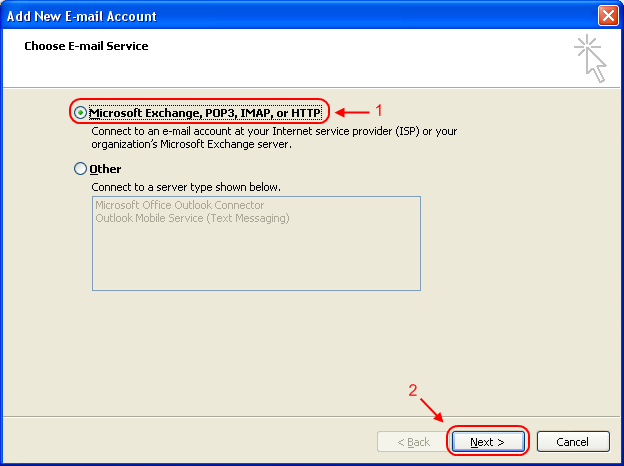
4. Tick ‘Manually configure server settings or additional server types’ and click Next.
5. Select ‘Internet E-mail’.
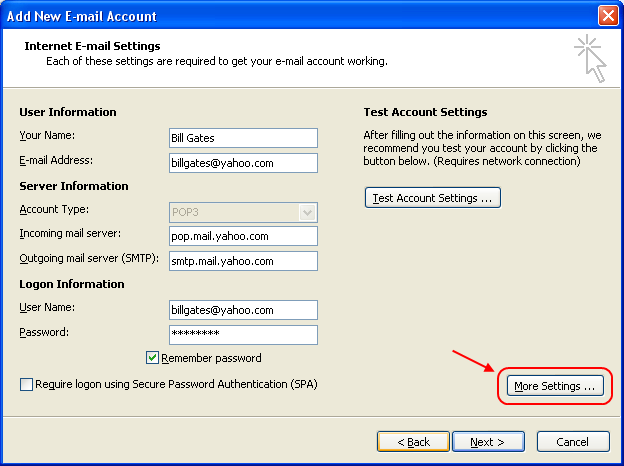
 6. Fill in your account details.
Your Name: <Your display name in the email>
E-mail Address: <The email address that you are setting up>
Account type: <POP3>
Incoming mail server: <pop.mail.yahoo.com>
Outgoing mail server: <smtp.mail.yahoo.com>
User name: <Your Yahoo! Mail address>
Passowrd: <Your Yahoo! Mail password>
Once you’re done, click the ‘More Settings…’ button.
 7. The ‘Internet Email Settings’ windows will pop up. Click on the ‘Advanced’ tab. Change the Incoming server (POP3) to 995. Tick the ‘This server requires an encrypted connection (SSL)’. Then, change the ‘Outgoing server (SMTP) to 465 and Select ‘SSL’ in the drop down list.
 8. Next, go to the ‘Outgoing Server’ tab and tick the ‘My outgoing server (SMTP) requires authentication’ option. Select ‘Use same settings as my incoming mail server’. Then click ‘OK’.
 9. Click on the ‘Test Account Settings’ button.
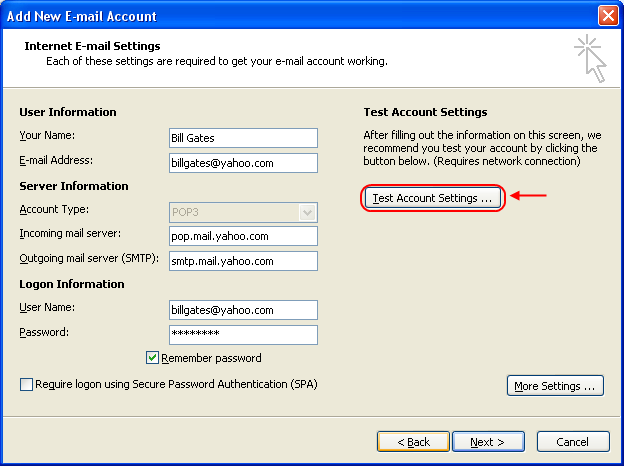 You should be seeing the following screen if all the settings are correct:
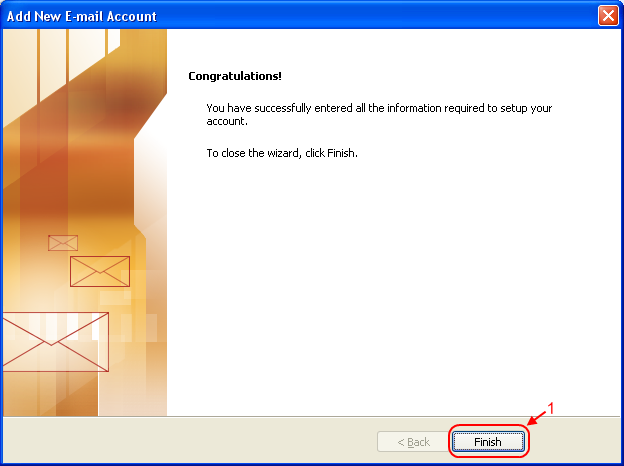
 10. Once you’re done, click ‘Next’. Congratulations! You just finish setting up your Yahoo! Mail in Microsoft Outlook 2007!
 If you have large Inbox, it will take some time for Outlook to download all the mails.
* If you are getting “Enter Network Password” error, please make sure that you have POP3 enabled in your Yahoo! Mail option! You can follow my guide here on how to enable POP3 for free Yahoo! Mail account.

Thank you again. I had a major computer problem and had to set up Yahoo mail on Outlook again. Came back to your site and followed your directions. Very helpful.
Thank you guys, you’ve done an awsome job helping me configure outlook.
Thanks, this help.
Hi guys i just followed the instruction to configure yahoomail in to my outlook 2007, but am unsuccessful regarding this am getting a dialog box prompts that enter your network password, am using my nokia N8 to connect internet to my laptop via bluetooth and 3G. what is the problem and better solution for this, please advice fast.
Dear
I’ve followed your instruction, but I cannot do it successfully, when I test account setting, there are some errors. I would like to know the reasons.
Thank you very much.
Looking forward to hearing from you soon.
Thank you so much! I’ve been trying to figure this out for 2 days and with your directions I am not receiving and sending messages from my outlook account. Thank you!
I mean I AM receiving and sending messages… whoops! 🙂
I followed the same step as mentioned above but I cant do it successfully, when I test account setting, there are some errors.
Thank you very much.
Looking forward to hearing from you soon.
wonderful! thanks
z
Good Day
I followed your instructions
But it keeps bringing up a tab that states enter network password.
Please help:
I tried the above. Check and rechecked. It still give a cross with POP3 while sending test email message gets done.
Pingback: How To | Tryfon Tz. Site
thanks 4 the info
thank you for this information, i already done test to send messages and it works but unfortunately it cannot recieve mail?? how was that? what am i going to do??
couldn’t pay for the yahoo mail plus as i am using master card from Nigeria. is there a way to configure without using yahoo mail plus? kindly advise.
I tried using 4 other methods to get my email to work and this was the only one that worked!! Thanks heaps!
I am able to receive mail from yahoo but I cant send mail, the new tab at top does not even light up, please help me with this. Thanks
Still getting error messages and nothing appears to work. Rechecked the yahoo POP settings and rechecked each of the settings as recommended.
Note- our problems with outlook happened afer yahoo went through a major upgrade several months ago. Reecently the servers froze and messages delayed for hours.
What alternate settings can work? What does Microsoft say? What does Yahoo say?
it’s 2014 but still this guide works like CHARM! Thanks a lot!
Very good guide!! Thanks a mill!
Thanks
verygood information
it is asking pssword every time
Pingback: Outlook 2007 Yahoo Mail | OutlookRecoveryGuide.org
Pingback: Outlook Yahoo Email Setup 2007 | OutlookRecoveryGuide.org
Pingback: Outlook 2007 Yahoo Mail Setup - ORG.org
Outlook is ok but one problem don’t incoming mail plz suggest me
Very good guide.thaks
Thank you for the info… very helpful.. =D
I tried this setup for the first time and got it right too. I’m just a beginner on computers and battled with setting up my outlook 2013. Just want to say thanks for the great help. THANK YOU.
Thank you.I can’t believe my outlook 2007 is working .I am so happy.Thank you for taking your time to help.
very helpful I just setup my outlook and working good
Really helpful and friendly instructions to follow. Thank you!